

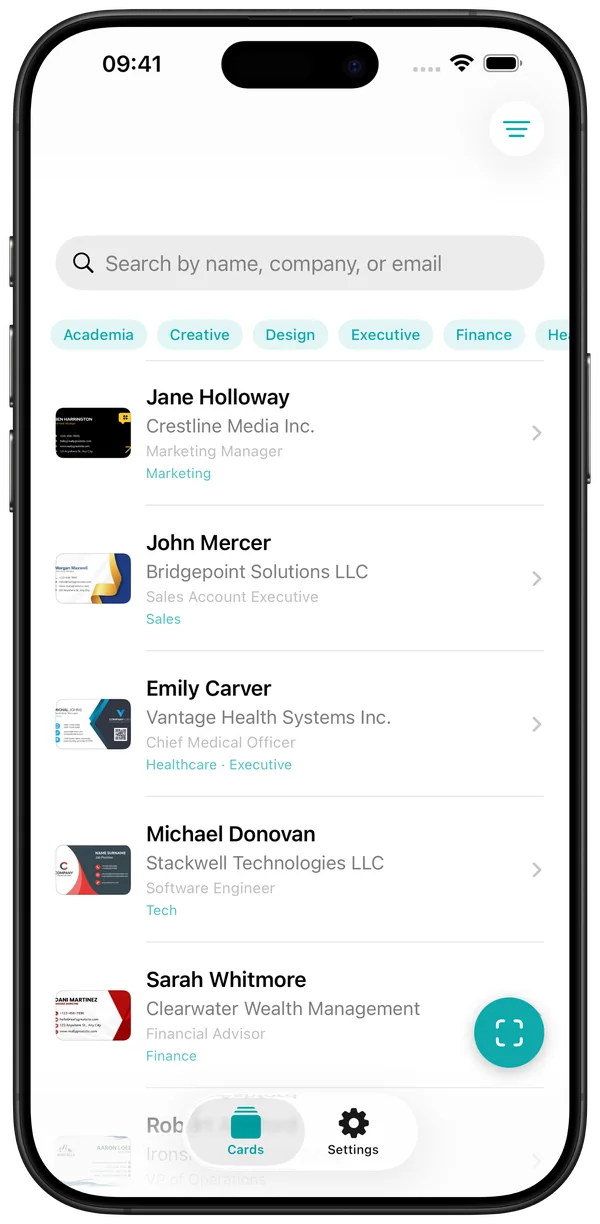

Add your own tags to cards, filter the list by tag and search by name, company or email. Scanned cards are also indexed in Spotlight, so you can find a contact from the iPhone home screen without opening the app.
- Custom tags: event, industry, client, anything you choose
- Filter the card list by tag
- Search by name, company or email
- Cards are indexed in Spotlight
Tags that match how you actually work
Folders force a card into one place. A tag has no such limit. One card can carry the event where you met, the industry the person works in and a status like “follow up,” and it appears under each. In Scard, tags are your own text: there is no fixed list to fit into.
Useful tag habits are short and consistent. Use the event name and year, such as web-summit-2026. Add a role or industry tag if you sell to several markets. Add a temporary tag, like to-call, and remove it once you have followed up. Because you can add a tag while the card is still on the review screen, tagging costs a few seconds at the moment you remember the context.
Consistency matters more than detail. Two spellings of the same tag split your cards into two groups, so pick a naming pattern early. The organizing guide describes a simple tag scheme and a follow-up routine.
Search and filter
Filtering narrows the list to one tag, which is the right tool when you ask “who did I meet at that conference?” Search is for when you remember something specific: a name, a company or part of an email address. Type a few letters and the list narrows.
The two work together. Filter to an event, then search for a company within it. Because Scard keeps cards on the device, the list and search respond without waiting on a network, and they work offline.
Search covers name, company and email and nothing beyond them, so if you need to find a person by what you discussed, put that in the notes field and a tag, and look the card up by name. If search returns two people with similar names, check the company, and check duplicate detection if they look like the same person.
Spotlight: find a contact from the home screen
Scard indexes your cards in Spotlight. Swipe down on the iPhone home screen, type a name, and the matching card appears in the results; tapping it opens the card in Scard. This is useful in a hurry, such as when someone calls from a number you do not recognize and you want to check whether you met them.
Spotlight indexing is separate from saving to your Contacts. A card can be searchable in Spotlight without being in your address book. If you want the contact in your phone’s dialer and Mail suggestions, save it to Contacts; the contact groups page covers that.
For a sense of how organization fits into the whole job of handling cards, see how to digitize business cards, and for the follow-up after an event, follow up after a trade show.
A simple scheme to start with
If you are not sure how to begin, start with two kinds of tags. One kind answers where you met: the event name and year. The other answers what happens next: a status such as follow-up, waiting or done. Add an industry tag only if you actually filter by it.
Review the tags after your first event. If you never filter by a tag, drop it. If you keep typing the same note, make it a tag. A small, stable set of tags is easier to apply at speed than a large one you have to think about, and it keeps the filter list short enough to scan.
Pair this with a habit of adding one line to the notes field about what you discussed. Tags tell you when and where; the note tells you why the card matters. Together they turn a name and a number into a reason to write back, which is the point of keeping cards in the first place.
Tags also make exports more useful, because the context you added at the event travels with the card in your collection and does not depend on your memory.
Search covers name, company and email, not the full text of notes. Tags are free text, so inconsistent spelling creates separate tags.
How to tag and find cards
- Add a tag on scan
On the review screen, add a tag such as the event name and year.
- Filter the list
Open the card list and choose a tag to see only those cards.
- Search
Type a name, company or email fragment to narrow the list.
- Use Spotlight
Swipe down on the home screen and type a name to find the card.
Frequently asked questions
Can I create my own tags?
Yes. Tags are custom text, such as an event or an industry.
What can I search by?
Name, company or email.
Do search and tags work offline?
Yes. Cards are stored on the device.
Do cards appear in Spotlight?
Yes, Scard indexes cards so you can find them from the iPhone home screen.