
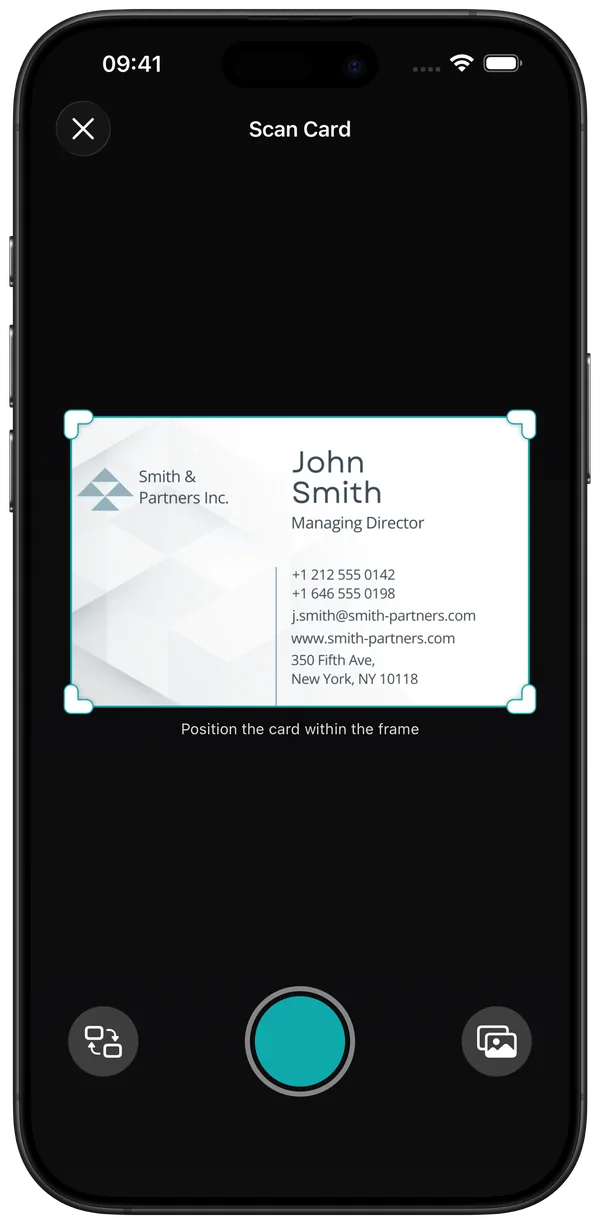
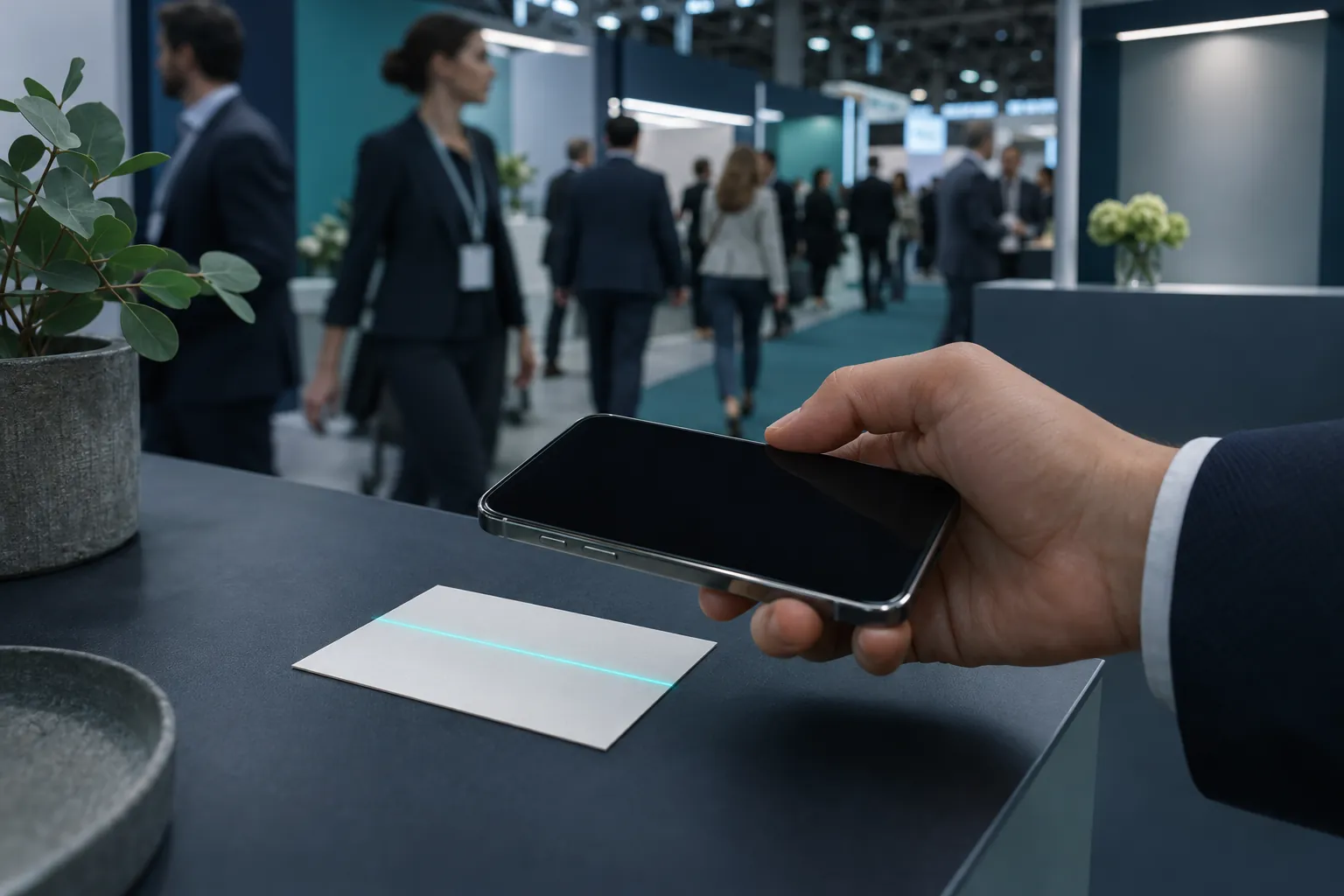
At a trade show you have a few seconds between conversations. Scard scans a card on your iPhone, works without a signal in a crowded hall, lets you tag the event as you go, and flags a duplicate if the same person hands you a second card. The follow-up list is ready when you get home.
- Scan between conversations
- On-device recognition works in halls with poor reception
- Tag every card with the event name as you scan
- Duplicate check when the same person gives you two cards
At the booth: scan between conversations
The pressure at an event is time. A conversation ends, the next person is already waiting, and the card goes into a pocket with the intention of dealing with it later. Later is when cards get lost or become anonymous rectangles with no memory attached.
With Scard you scan the card as the person walks away or while they are still talking. Hold it in the frame, let the edges lock, crop if needed and look at the fields. Add a tag with the event name and, if you want, a note about what was discussed. That note is the most valuable thing you will capture, because the card never says whether someone wanted a quote or just a brochure.
You do not need to fix everything on the spot. Check that the name and email are right, because those drive the follow-up, and leave small corrections for the evening. Scanning at a steady pace beats a perfect record of fewer cards. The lead capture checklist lists what to record while you are there.
In the hall: scanning without a signal
Exhibition halls are hard on mobile networks, with thousands of phones, thick walls and a venue Wi-Fi that falls over by noon. Scard does not depend on any of it for the main job. Text recognition runs on your iPhone with Apple Vision, so scanning works with no connection at all.
Without a connection, an on-device parser sorts the text into fields; with one, an AI model sorts the recognized text, as described on the AI sorting page. Either way, you review the fields. Tags, notes and search also work offline, and cards sync through your iCloud when the phone reconnects. More detail is on the offline page.
If you scan on an iPhone and want to review on an iPad in your hotel room, sync through iCloud does that without an account.
After the show: duplicates, groups and follow-up
Events produce duplicates. A person visits your booth on day one and again on day two, and gives you a card each time, or two colleagues from one company each give you theirs. When you scan the repeat, Scard matches by email, then name plus company, and asks whether to merge, replace or add as new. See duplicate detection.
Back at your desk, filter by the event tag to see everyone you met. Save the people you want to your iPhone Contacts into a group for the event, or export the list as CSV for a spreadsheet or your CRM; Scard has no direct CRM integration, so the import is a file import, as the Outlook and CRM guide explains. The contact groups page shows the save step.
Then write the follow-ups while you still remember the conversations. Most advice agrees that sooner is better, and the post on follow-up after a trade show suggests a simple order: the warmest leads first, with a specific reference to what you discussed. A note on each card makes that practical. The organizing guide has a 24-hour routine to build on.
Before you go: a short checklist
A little preparation makes the show smoother. Install Scard and run your two free scans, or decide on Pro if you expect many cards. Grant camera permission at home, ahead of the booth. Pick your event tag and write it where you will remember it.
Charge a battery pack, because scanning all day uses the screen and camera. Decide who on your team scans what, so the same contact is not captured three times; if several people use iCloud on separate devices, each person has their own collection, so agree on a naming pattern for tags.
Finally, schedule the follow-up time now. Block an hour the day after you return and treat it like a meeting. The lead capture checklist has more preparation ideas.
Scard is a scanner and organizer, not a lead-retrieval system: it does not connect to event badge scanners or CRMs. Free scans are limited to 2, so a busy event needs Scard Pro for unlimited scanning.
How to use Scard at a trade show
- Set your tag
Decide the event tag, such as the event name and year, before the doors open.
- Scan each card
Scan between conversations. Check name and email, add the tag and a short note.
- Review in the evening
Fix remaining fields, resolve any duplicates and confirm the tags.
- Follow up
Filter by the event tag, save keepers to a Contacts group or export CSV, and send your messages.
Frequently asked questions
Does Scard work in a hall with no signal?
Yes. Recognition runs on your iPhone. Offline, an on-device parser sorts the fields.
How do I keep event cards together?
Add the event name as a tag and filter by it later. You can also save them to a Contacts group.
What if the same person gives me two cards?
Scard checks by email, then name plus company, and lets you merge, replace or add as new.
Can I send the cards to my CRM?
Not directly. Export CSV or vCard and import the file in your CRM.