

Yes, Scard scans business cards with no internet connection. Text recognition uses Apple Vision on the device, and the card image never leaves your iPhone. Without a connection, an on-device parser sorts the text into fields instead of the online AI step.
- Text recognition runs on-device with Apple Vision
- Scanning, cropping, editing and saving all work in airplane mode
- Offline, an on-device parser sorts the fields; online, AI sorting is used
- The card image is never uploaded, online or offline
What works without internet
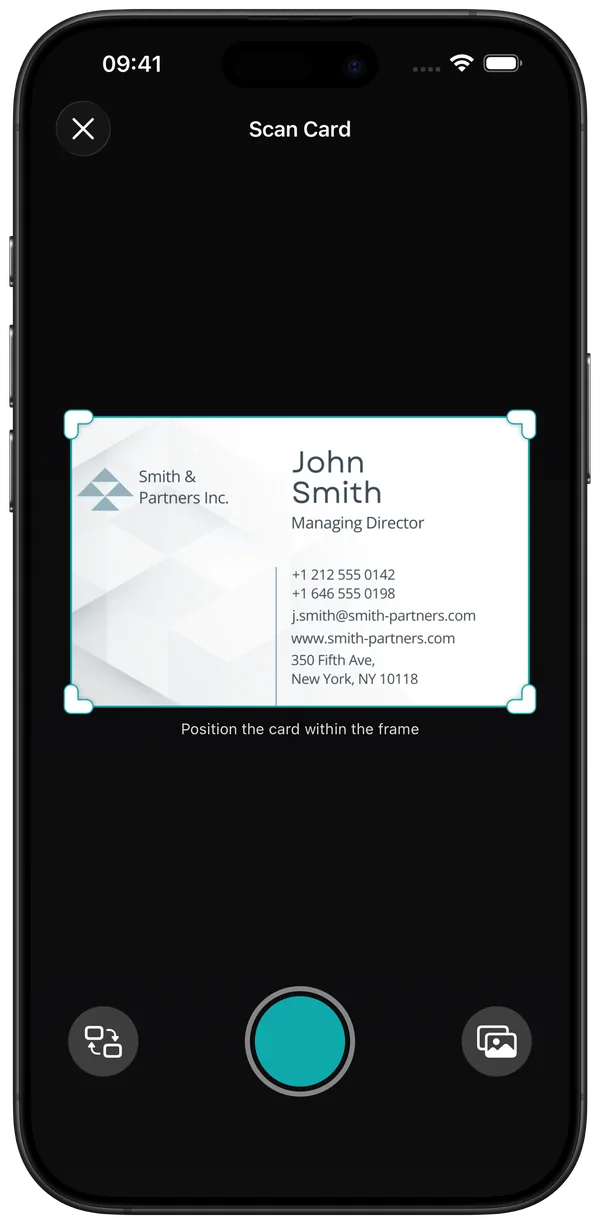
The part of scanning that has to be reliable is reading the card, and that happens entirely on your iPhone. When you hold a card in the frame, Scard detects its edges, you crop it with corner handles, and Apple Vision recognizes the text locally. None of that needs a network.
Everything after that is local too. You can review the fields, correct a typo, add a note or a tag, and keep the card in your collection. Cards are stored on the device and appear in search and in Spotlight just as they do online. If iCloud is unavailable, the app keeps the data on the device only and syncs when iCloud is reachable again.
This matters in a few predictable places: a plane or train with no Wi-Fi, a basement conference venue, a trade-fair hall where thousands of phones compete for the same network, or a client visit abroad with roaming switched off. You do not have to plan around coverage. You scan when someone hands you a card.
What changes when you are offline
Scard sorts recognized text into fields: first and last name, job title, company, phone numbers, fax, email addresses, website and postal address. How that sorting happens depends on whether a connection is available.
When you are online, the recognized plain text (never the image) is sent over HTTPS to an AI model that sorts it into fields. This happens automatically on every online scan; it is not a setting you switch on. When you are offline, or if the online step fails for any reason, an on-device parser does the sorting instead. The scan still completes and you still get a filled-in card.
The trade-off is that the AI step can handle unusual layouts better, such as a card with a tagline between the name and the title, or with a logo that reads as text. The on-device parser handles standard layouts well but may place an odd line in the wrong field. Because you review every field before saving, you pay a few seconds of correction and never end up with a wrong contact. For the full picture of what is sent online, see how the AI field sorting works.
A routine for scanning where coverage is poor
A few habits make offline scanning smoother. Scan in good light and keep the card flat so Vision gets clean text; the scanning tips cover glare and shadows. Fix any field that looks off while the person is still in front of you, because that is when you remember who they are.
Add a tag at the moment of scanning, for example the name of the event. Tags and search work offline, so you can filter your collection on the flight home. When you are back on a connection, iCloud sync brings the cards to your iPad if you use one, and you can export or save to Contacts at your desk. If you are heading to an event, the trade show workflow shows how the pieces fit together.
Saving to iPhone Contacts, exporting a CSV or sharing a vCard do not depend on a network either, but they are usually easier to do from a desk after the event.
Offline scanning and your data
Scanning offline keeps the privacy picture simple. With no connection, nothing is sent anywhere, because the online AI step cannot run. The card image never leaves the device in any case, and the recognized text stays on the iPhone until you are back online and scan again.
Cards scanned offline are stored, searchable and exportable in the same way as cards scanned online. The only difference is which method sorted the fields. If you want to compare, scan the same card once in airplane mode and once online, and look at the two results side by side.
If you travel often, it is worth doing that test before the trip. You will see how your usual card layouts behave with the on-device parser and know how much checking to expect. For a deeper look at privacy, see the no-account privacy page.
Offline scans use the on-device parser, which can mis-sort cards with unusual layouts. Review each field before you save. Free scans are limited to 2; unlimited scanning needs Scard Pro.
How to scan a business card offline
- Open Scard and aim at the card
Hold the card inside the frame in good light. Scard finds the edges automatically.
- Crop the card
Drag the corner handles on the full-screen preview so the card fills the frame, then confirm.
- Review the fields
Check name, title, company, phone and email. Correct anything the on-device parser placed in the wrong field.
- Tag and save
Add a tag such as the event name and save. The card is stored on your iPhone and syncs through iCloud when you are online.
Frequently asked questions
Does Scard need internet to scan a card?
No. Text recognition runs on your iPhone with Apple Vision. Without a connection, an on-device parser sorts the text into fields.
Is the result worse offline?
Standard layouts work well. Unusual layouts may need a manual correction because the online AI step is not used offline. You review every field before saving.
Does the card image get uploaded when I am online?
No. The image stays on your device. Only the recognized text is sent for AI sorting when a connection is available.
Can I use Scard in airplane mode?
Yes. Scanning, editing, tagging and searching work in airplane mode. iCloud sync resumes when you reconnect.