

Using Apple Vision on your iPhone, Scard recognizes text in 22 languages: German, English, French, Italian, Spanish, Dutch, Polish, Swedish, Danish, Norwegian, Finnish, Portuguese, Czech, Slovak, Hungarian, Romanian, Croatian, Turkish, Catalan, Indonesian, Malay and Vietnamese. Cyrillic, Greek, Chinese, Japanese, Korean and Arabic scripts are not supported.
- 22 on-device OCR languages, mostly Latin-script
- Accents and diacritics are recognized, and CSV export keeps them
- Cyrillic, Greek, CJK and Arabic scripts are not supported
- The app interface itself is available in 18 languages
The 22 languages Scard can read
If you travel for work or sell across borders, your stack of cards is rarely in one language. Scard’s text recognition covers German, English, French, Italian, Spanish, Dutch, Polish, Swedish, Danish, Norwegian, Finnish, Portuguese, Czech, Slovak, Hungarian, Romanian, Croatian, Turkish, Catalan, Indonesian, Malay and Vietnamese.
Recognition happens on the device through Apple Vision, so a card in one of these languages is read without an internet connection. You do not need to tell the app which language a card is in before you scan. Scan a Polish card, then a Portuguese one, then a Turkish one, and review each result as usual.
Names are where foreign cards usually go wrong in a contact list: Wróblewski, Öztürk, Nguyễn, Østergaard. Diacritics are part of the name, and a contact without them is harder to find and looks careless in an email. Scard keeps the accents it recognizes, and the CSV export is UTF-8 with a byte-order mark so Excel shows them correctly. The Excel guide covers the opening step.
Scripts Scard cannot read
Scard does not recognize Cyrillic, Greek, Chinese, Japanese, Korean or Arabic scripts. If a card is entirely in one of those, the scan will not produce reliable text. That is a real limit, and it is better to know it before a trip to Seoul or Dubai than after.
Many international cards are bilingual, with one side in a local script and the other in English or another Latin-script language. In that case, scan the Latin-script side. A card printed with a Latin transliteration of the name, common in Japan and the Gulf states, is also readable on that side.
For a card you cannot scan, keep the physical card or note the contact in your usual way. Scard will not guess at scripts it does not support, so expect a failed result there; it says nothing about the quality of your scan. On etiquette and bilingual cards, the post on business card etiquette around the world is a useful read.
Language of the app versus language of the card
Two things are easy to mix up. The app interface is available in 18 languages (English, German, Italian, French, Spanish, Dutch, Polish, Swedish, Danish, Norwegian, Portuguese, Turkish, Finnish, Czech, Slovak, Hungarian, Romanian and Croatian). The text recognition covers 22 languages. They overlap, but they are independent: you can use the app in English and scan a Vietnamese card, or use it in German and scan an Indonesian one.
Field sorting follows the same logic. Online, an AI model sorts the recognized text into fields, which helps when a title or address is in a language you do not read. Offline, an on-device parser sorts the fields; it may be less sure of unfamiliar title words, so check the result. Details are on the AI sorting page.
After scanning, search works across all your cards regardless of language, by name, company or email, and you can tag cards by country or event. See tags and search.
Tips for cards in other languages
Foreign cards often pack more onto a small surface: two languages, longer address blocks, and titles with a hierarchy you may not know. Scan each card in even light and crop tightly, because small diacritics are the first thing lost to glare or blur.
Check the name field first. In many countries the family name comes first or is written in capitals, and a parser, offline or online, can reverse them. Fix the order before saving so the contact sorts and greets correctly. Then check the phone number: the country code may be printed in a different style than you use, and a number saved without it will not dial from abroad.
If you collect cards from one country regularly, tag them with the country so you can filter later and apply local etiquette in your follow-up. The etiquette post has useful context, and tags make the grouping easy.
Cards written only in Cyrillic, Greek, Chinese, Japanese, Korean or Arabic script cannot be read reliably. Scan the Latin-script side of a bilingual card where there is one.
How to scan a foreign-language card
- Check the script
If the card uses a supported Latin-script language, scan it directly. If it is bilingual, choose the Latin-script side.
- Scan and crop
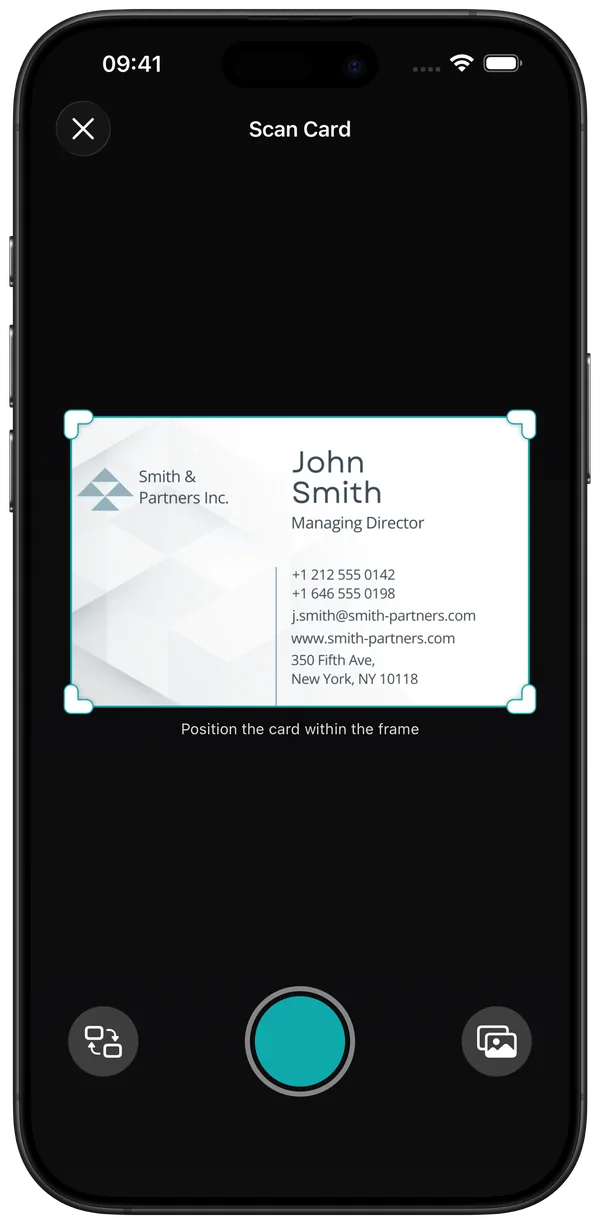
Frame the card, let Scard detect the edges, and crop with the corner handles.
- Check names and accents
Review the fields, especially names with diacritics and titles you do not recognize.
- Tag by country or event
Add a tag so you can filter the card later.
Frequently asked questions
Which languages can Scard read?
German, English, French, Italian, Spanish, Dutch, Polish, Swedish, Danish, Norwegian, Finnish, Portuguese, Czech, Slovak, Hungarian, Romanian, Croatian, Turkish, Catalan, Indonesian, Malay and Vietnamese.
Can it scan Chinese, Japanese, Russian or Arabic cards?
No. Cyrillic, Greek, CJK and Arabic scripts are not supported.
Do I choose the card language first?
No. You scan the card and review the result.
Does Scard keep accents in exported files?
Recognized accents are kept. The CSV export is UTF-8 with a byte-order mark so Excel displays them correctly.